


Welcome to WaveDirect Tech Tips
Stay connected with our library of troubleshooting guides, how-to articles, and support resources designed to help you get the most out of your internet and streaming services. Whether you’re looking to solve a Wi-Fi issue, improve streaming quality, or learn quick device fixes, our Tech Tips are here to guide you step-by-step.
We know how important reliable internet and seamless streaming are in your day-to-day life. Our Tech Tips page is designed to put simple, effective solutions at your fingertips, so you can get back online quickly without the hassle.

Our office is open Monday to Friday: 8:30 AM to 5:00 PM EST. We’re closed for all major holidays, including federal holidays.
Call us at 519-737-9283
- Extension 1 will bring you to our local customer service and billing team. You can connect with customer service Monday to Friday 8:30 AM to 5:00 PM EST.
- Extension 2 will connect you with our local technical support team. We are available over the phone Monday to Friday 8:00 AM to 6:00 PM EST.
- Reminder, we are closed for all major holidays!
- You can also fill out our Support Form, located below, and a member of our support team will review your request!
Need help outside of our listed hours?
- We offer a 24-hour tech support line! Our after hours support team is available 24/7 when you call extension 2.
- For the best support experience, we recommend contacting us during our local support business hours.
- Our voicemail is always available and we respond to your message within one-business day.
We are located at: 158 Erie St. N. Leamington, ON N8H 3A4.
We have specialized in connecting homes to high-speed internet across Windsor and Essex County for 20 years, and are proud to continue expansion across the province.
Depending on your address, you may qualify for our fibre internet, fibre-fed cable internet, or fixed wireless internet.
We also offer TV! Our fully regulated IPTV television service called NorthWaveTV is available to WaveDirect internet subscribers. Subject to availability at your address.
We’re constantly expanding our service region, so please check your address to see service availability, or contact us directly to learn more.
If you’re coming by the office to pick up internet or TV equipment, please come to the front door to our Leamington office during business hours.
If you can’t make it to Leamington, we will ship your equipment to you for free! Your client experience advisor will coordinate your shipment or pickup over the phone when you sign up.
We offer a variety of package options on our fixed wireless, fibre or fibre-fed internet services that vary depending on your address. Check out our Internet Services page and look up your address for your availability.
- Our packages are displayed in megabits per second (Mbps), which is a measurement for downloading and uploading data.
- Download Speed is the speed at which data is being delivered to you. Examples include: viewing websites, files, and streaming visual media.
- Upload Speed is the speed at which data is travelling from your device to the internet. Examples include: video chatting, and posting images or videos on social media.
- Here’s an example of how our internet packages are presented:
- Our Unlimited 60 plan will receive up to 60Mbps download and up to 10Mbps upload.
- Why do we say ‘up to?’ Speeds can vary for many reasons.
- Many circumstances can affect an internet connection which may result in a fluctuation in your speeds. The performance of the cable into your home, or a disturbance in the line of sight from your dish to our tower (for wireless customers) will have an affect on your service performance.
- Your router can also have a significant impact on your speeds – that’s why we recommend going with one of ours 😉.
- A strong connection will give you the best performance! If you have concerns with your speeds, please connect with our technical support team.
Reminder: All devices connected to your WiFi will affect your speed test. For best results, disconnect all other devices from your internet during the speed test minus the one used for the test. For the best, most accurate speed test results, use a wired connection!
Here are some of our favourite free to use speed test sites:
If you have our Total Home Coverage package and are using a WaveDirect Calix managed router, all WiFi settings can be viewed in the ‘CommandIQ’ app. Download the app on your smartphone’s app store.
Our technical support team can assist you with your WiFi account setup. Please contact at 519-737-9283 ext. 2.
Yes. Our Total Home Coverage package offers parental controls, as well as a variety of home control options.
With the CommandIQ app included, you are able to:
- Reset your WiFi network and password name.
- Run network performance tests and manage guest networks.
- Parental controls like scheduling internet downtime and limiting access.
If you don’t currently have Total Home Coverage set up on your account, please connect with our sales team to get started today: 519-737-9283 ext. 1.
If you’re experiencing service connection issues, please try the following before connecting with our support team:
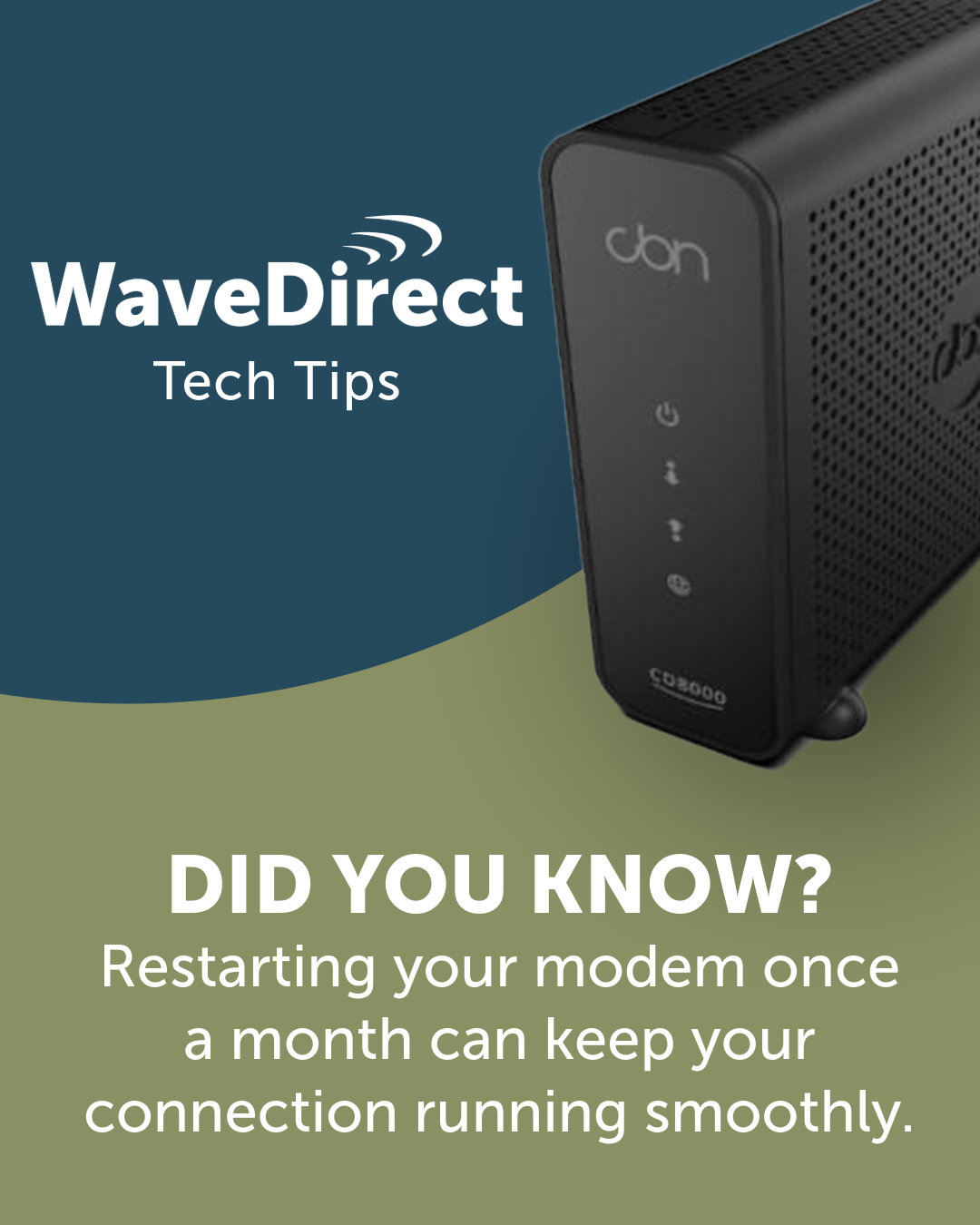
Cable Customers: Try restarting your modem and router.
- Modem: The modem is the piece of equipment that connects the coax cable coming into your home and the router. First, ensure that the coax cable is securely attached to the modem. Hold down the reset button for 10 seconds (usually located on the back of the modem). The LED lights will go out and begin flashing – this process can take up to five minutes. If your modem doesn’t have a reset button, try unplugging it from the wall, waiting 30 seconds and then plugging it back in.
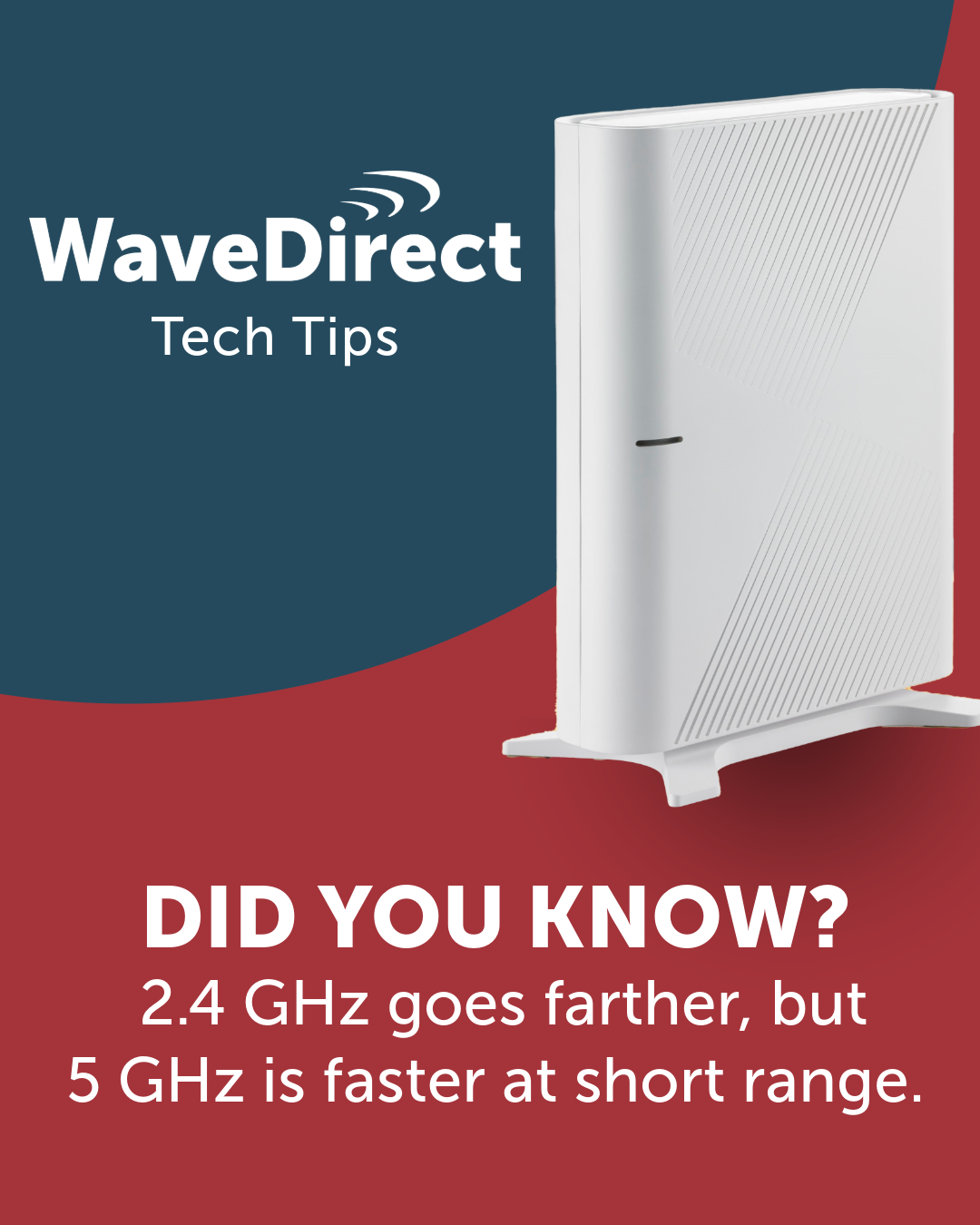
- Router: Your router is the device that provides the WiFi connection to your home, and it will be connected to your modem. Ensure that your ethernet cable that connects the router to the modem is secure and in the WAN or internet port. Next, try powering down your router, waiting 30 seconds and then turning it back on to see if service reconnects.
Wireless Customers: Try resetting your POE and restarting your router.
- POE: The POE is the small black adaptor that connects the external cable from your dish outside to your router. It will be located where your cable enters the home. One by one, disconnect and reconnect the cables in the POE to ensure a good physical connection. If the status light on the POE is not lit, there is a connection problem and it will require a replacement.
- Router: You can also power cycle your router to ensure the device is connecting properly. Ensure that your ethernet cable that connects the router to the POE is secure and in the WAN or internet port. Next, try powering down your router, waiting 30 seconds and then turning it back on to see if service reconnects.
If your internet service is still out after completing the steps above, or you would like a technical support representative to assist you through the process, please contact our team at: 519-737-9283, ext. 2.
We offer a fully regulated IPTV service, known as NorthWaveTV.
In order to become a NorthWaveTV subscriber, customers must have WaveDirect internet with package download speeds of a minimum 15 Mbps.
Check your package options at your home by visiting our Availability Page
IPTV gives you the flexibility to view your content over the internet, meaning there’s no need to run extensive cabling and wires throughout your home. Instead, IPTV services typically function through an app and streaming stick, which plugs into the back of your television and an outlet
You can watch our setup videos by clicking the links below:
We also offer PDF written versions, available by clicking the links below:
- Amazon PDF
- Apple PDF
- Roku PDF
- Roku PDF
NorthWaveTV is available on up to five televisions in your home. You will be provided your first login when signing up for the service and you can generate new codes for additional televisions in your home.
How? Open the NorthWaveTV app on your television and from the TV guide on Amazon, AppleTV or Roku, find the “Account” tab. Navigate to “Add Device” and click to generate new login and password credentials. These credentials will be available for use for approximately five minutes.
If you require any troubleshooting assistance, please connect with our technical support team at: 519-737-9283 ext. 2.
NorthWaveTV is an app that you install directly onto your streaming media device. The app can only be accessed once downloaded to select Amazon Fire Sticks, AppleTV or Roku Streaming Stick devices.
Yes. NorthWaveTV is a regulated IPTV (Internet Protocol Television) service that provides TV over your internet connection.
Each NorthWaveTV subscription allows for up to five connected streaming devices.
NorthWaveTV offers a variety of packages, as well as a selection of individual channels available a la carte. Our full channel listing can be found in our package builder here.
Roku:
- Express 3900, Express 3960
- Premiere 3920
- Streaming Stick 3810, Streaming Stick 4K 3820, Streaming Stick 4K+ 3821
- Express 4K 3940, Express 4K+ 3941
- Ultra 4640, Ultra 4660, Ultra 4670, Ultra 4800
Amazon Fire TV:
- Stick 4K Max 2nd Gen (K3R6AT), Stick 4K Max 1st Gen (K2R2TE)
- Stick 3rd Gen (S3L46N), Stick 2nd Gen# (LY73PR)
- 3rd Gen (LDC9WZ), Cube 3rd Gen (GA5Z9L), Cube 2nd Gen (A78V3N)
Apple TV:
- HD Gen 4 (A1625)
- 4K Gen 1 (A1842), 4K Gen 2 (A2169)
- 4K Gen 3 (A2737, A2843)
Our plan includes unlimited calling within Canada and the continental United States.
This allows you to make and receive calls across most of North America without per-minute charges, subject to the exclusions listed below.
Yes. The Canada & U.S. plan does not include calls to the following areas:
Canada Exclusions:
- Yukon
- Northwest Territories
- Nunavut
United States & Territories Exclusions:
- Alaska
- Hawaii
- Puerto Rico
- U.S. Virgin Islands
- Guam
- American Samoa
- Northern Mariana Islands
Calls to these regions are not included in the unlimited Canada/U.S. plan. However, calls to these destinations will still complete and will be billed at applicable long-distance (LD) rates.
Click here to view the full Call Exclusions & Long Distance List
International calling outside of Canada and the continental United States is generally not included.
There may be select countries that are accessible and not blocked under our international restrictions. Available destinations are subject to change.
Please contact us if you require international calling so we can confirm availability and applicable rates.
Click here to view the full Call Exclusions & Long Distance List
No. Our VoIP phone service does not require a long-term contract. You may cancel your service in accordance with our service terms.
In most cases, yes. We can help transfer (port) your existing phone number to our VoIP service.
Do not cancel your current provider until the porting process is complete to avoid losing your number.
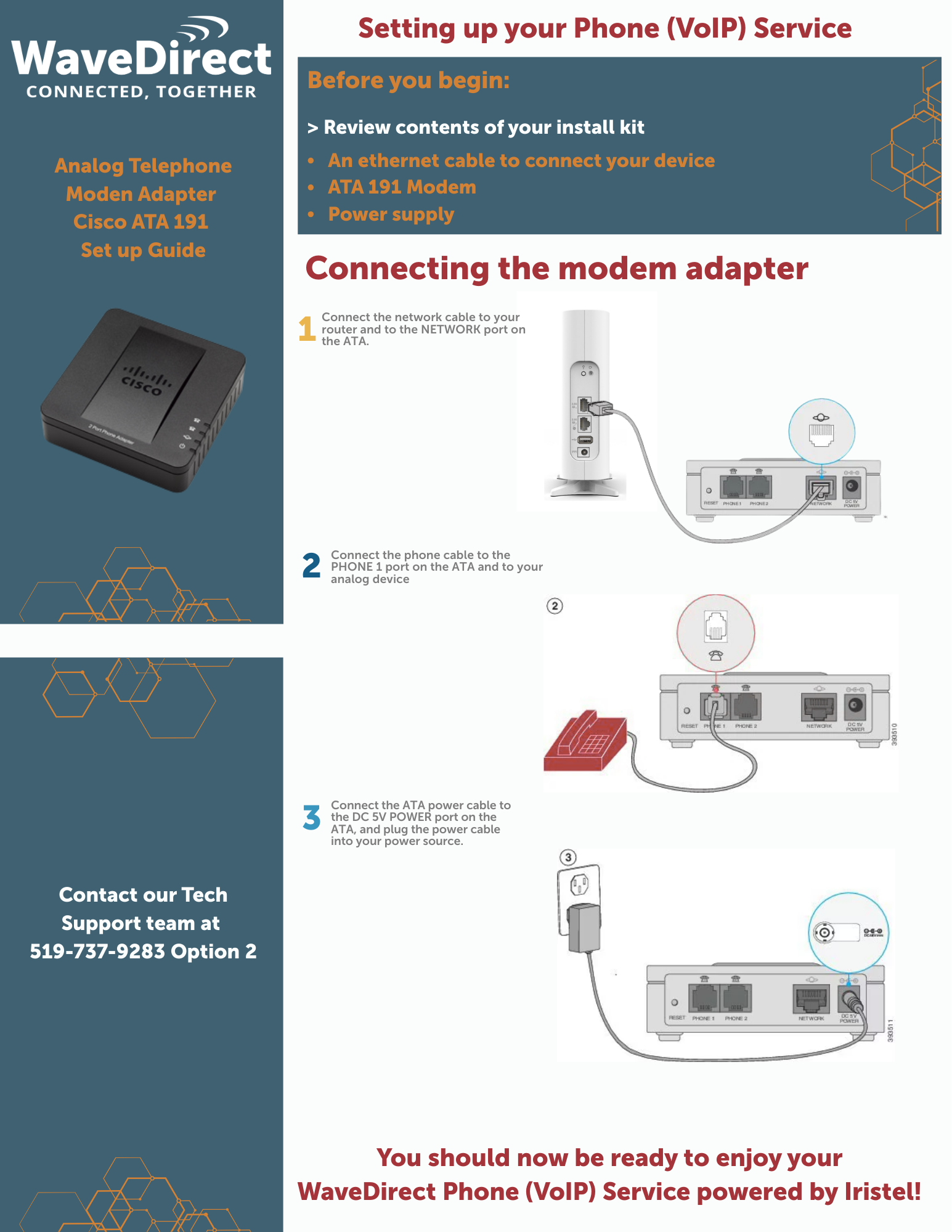
We provide a Cisco ATA 191 adapter, which is required to use our VoIP service.
You will need to provide:
A traditional corded or cordless home phone with a standard RJ11 cable.
The ATA connects to your modem or router, and your phone plugs directly into the ATA. No special VoIP phone is required.
Setup Guide:
Click to enlarge.
Our VoIP service supports 911 emergency calling.
When you dial 911, your call is routed to the emergency response center associated with the service address registered on your account, and that address is provided to the dispatcher.
Important:
- You must keep your service address up to date.
- If you move, you must notify us before using the service at the new location.
- VoIP service requires power and internet to function. If either is unavailable, 911 service will not work.
We recommend keeping a mobile phone available as a backup during outages.
Because VoIP relies on your internet connection and electrical power, your phone service — including 911 — will not function during a power outage or internet interruption.
Service will resume once connectivity and power are restored.
Our VoIP plan includes:
- Caller ID
- Call Waiting
- Call Forwarding
- Conference Calling
- Voicemail
These features are included at no additional cost.
Traditional landline service uses dedicated copper telephone lines and may function during power outages (with corded phones).
VoIP uses your internet connection to make and receive calls. It offers greater flexibility and more included features but requires power and internet to operate.
Yes, but you must contact us before relocating your equipment. Your emergency service address must be updated before using the service at a new location.
Contact our customer support team prior to moving your device. We will update your registered address to ensure proper 911 routing.
- Account Login
- WaveDirect email account access
- Is your business hosted with WaveDirect?
- Is your business email hosted with us, with your own domain?
Your WaveDirect monthly bill will be delivered to your inbox on the 1st of every month. Those who receive paper billing will have it mailed on the first business day of the month.
Full payment is due on the 21st of each month.
Your bill can be paid in the following ways:
- Cheque
- Online bank payments
- Credit Card payments
- Pre-authorized bank or credit card payments. Call our billing department to set up.
- EFT (Electronic Funds Transfer)
- Paying at your bank directly (your bank may require your WaveDirect bill)
Contact our billing department if you require assistance with setting up your bill payment.
Our business hours are Monday to Friday, 8:30AM to 5:00 PM, calling 519-737-9283, ext. 1
Contact Our Support Team
We're Here to Help!
519-737-9283
Monday to Friday
8:00 AM to 6:00 PM
24/7 after-hours support is available.
Closed all major holidays.
"*" indicates required fields